CSV to JSON Converter
CSV to JSON Converter
CSV is a simple, tabular format that works well for spreadsheets, but APIs and applications typically expect JSON. This CSV to JSON converter transforms rows into JSON objects so you can use CSV data in APIs, scripts, and data pipelines. It runs entirely in your browser, making it fast and private.
New features overview
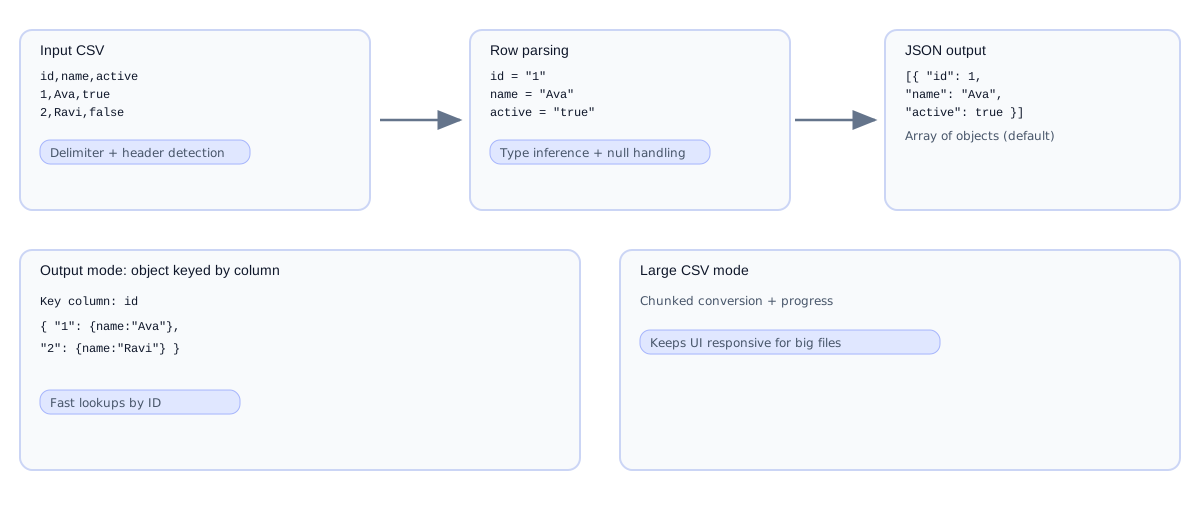
CSV → JSON now supports delimiter selection, header handling, type inference, output modes, and large-file conversion. The diagrams below show how each feature impacts the output.
Delimiter and header handling
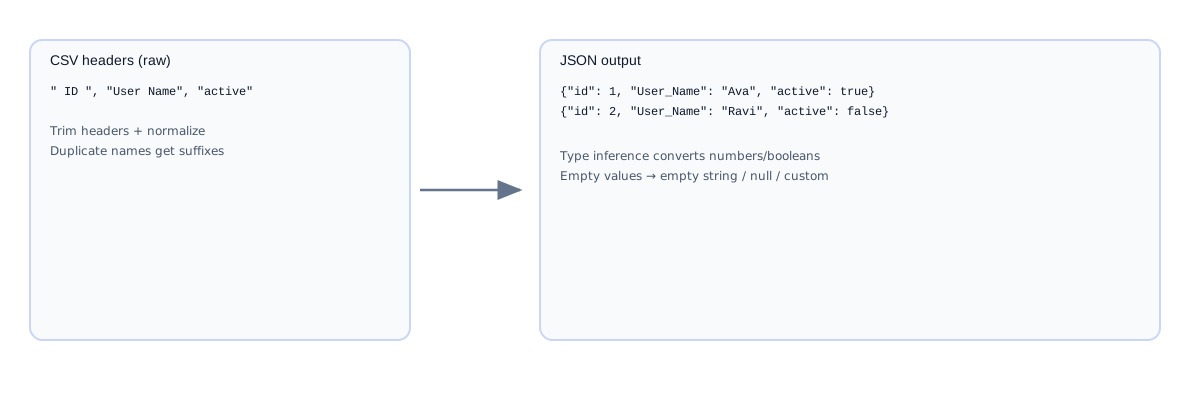
CSV files may use commas, semicolons, tabs, or pipes. Use Delimiter to auto-detect or force the correct separator. Toggle Header row if your file has no headers. Use Trim headers to clean extra spaces so JSON keys are consistent.
Type inference and null handling
Enable Type inference to convert numbers and booleans automatically. Use Null/empty to decide how blank fields appear in JSON (empty string, null, or a custom placeholder).
Output modes
Use Array of objects for standard JSON output. Use Object keyed by column to build a dictionary keyed by a column such as id for fast lookups.
Large file mode
Enable Large file mode to convert big CSVs in chunks with a progress indicator. This keeps the UI responsive for large datasets.
When to use each feature
- Delimiter: Use Auto for unknown files; pick comma/semicolon/tab/pipe if you know the format.
- Header row: Turn off only if the CSV has no headers.
- Trim headers: Use it to remove extra spaces and keep clean JSON keys.
- Type inference: Enable to convert numeric and boolean fields automatically.
- Null/empty: Use null or custom values if your API requires explicit placeholders.
- Output mode: Use array for standard APIs; use keyed object for fast lookup by ID.
- Large file mode: Enable for big files to avoid UI freezes.
Why convert CSV to JSON
CSV is convenient for exporting data from tools like Excel, Google Sheets, or CRM systems. JSON is the standard format for APIs and modern applications. Converting CSV to JSON lets you take spreadsheet data and load it into a web app, send it to a REST API, or store it in a JSON database. It is also useful when you need to test APIs with real data from reports.
How the conversion works
The first row of the CSV is treated as the header row and becomes the JSON keys. Each subsequent row becomes an object with those keys. The result is typically a JSON array of objects. If your CSV does not have headers, you can add them or edit the output to match the expected schema.
How to use the CSV to JSON tool
- Paste CSV data into the left editor or upload a
.csvfile. - Click Convert to generate JSON on the right.
- Copy or download the JSON output.
Example conversion
Input CSV:
id,name,role
1,Ava,editor
2,Ravi,admin
Output JSON:
[
  {"id": "1", "name": "Ava", "role": "editor"},
  {"id": "2", "name": "Ravi", "role": "admin"}
]
Note that CSV values are treated as strings unless you convert types afterward.
Common issues and fixes
- Missing headers: If the CSV lacks headers, the output will not have meaningful keys. Add a header row first.
- Commas inside values: Values with commas must be quoted in CSV. Ensure your CSV uses quotes correctly.
- Different delimiters: Some CSV files use semicolons instead of commas. Update the CSV to use commas or standardize the delimiter.
- Empty rows: Blank lines may create empty objects. Remove empty lines before conversion.
- Type conversion: Numbers and booleans are output as strings. Convert types in a second step if needed.
Best practices
- Keep headers consistent and avoid duplicate column names.
- Trim whitespace in headers to avoid unexpected key names.
- Validate the output JSON with JSON Validator.
- Use UTF-8 encoding for international characters.
- Review output in tree mode to verify structure quickly.
Use cases
- Convert spreadsheet data into API-ready payloads.
- Prepare CSV exports for JSON-based apps.
- Load CSV datasets into NoSQL or document databases.
- Create test data from business reports.
Delimiter and quoting rules
CSV files may use commas, semicolons, or tabs depending on region and tool. This converter expects standard comma-separated values. If your file uses a different delimiter, replace it or normalize the file before conversion. Values that include commas must be wrapped in quotes, and quotes inside values should be escaped with another quote.
Type inference
CSV has no explicit types, so values are interpreted as strings. If you need numbers or booleans in the JSON output, convert those fields after conversion or use a scripting step to coerce types. This is especially important for IDs, dates, and currency fields.
Header cleanup
Headers become JSON keys, so clean them up before conversion. Remove extra spaces, avoid duplicate names, and keep them consistent. If the headers are messy, you can rename keys after conversion using JSON Key Renamer.
Working with large CSV files
Very large CSV files can slow down in a browser. If you hit performance limits, split the file into smaller chunks or convert it with a server-side tool. This online converter is ideal for daily use, but extremely large datasets may require a more robust pipeline.
Example with quoted values
Input CSV:
id,name,notes
1,Ava,"Works on API, backend"
2,Ravi,"Prefers CSV, exports"
Output JSON:
[
  {"id": "1", "name": "Ava", "notes": "Works on API, backend"},
  {"id": "2", "name": "Ravi", "notes": "Prefers CSV, exports"}
]
Data cleaning before conversion
CSV exports often include extra spaces, empty columns, or inconsistent headers. Clean the file before conversion to get predictable JSON. Remove empty columns, standardize header names, and make sure each row has the same number of fields.
Schema alignment
If the JSON will be sent to an API, confirm that the keys and field names match the API schema. You can use JSON Validator with a schema or validate against documentation. This reduces the chance of rejected requests and saves debugging time.
Whitespace and cleanup
CSV exports sometimes include trailing spaces or inconsistent casing in headers. Trim whitespace and normalize header names before conversion to avoid confusing keys like " name" or "Name" showing up in JSON. Clean inputs produce more reliable outputs.
Security reminder
If your CSV contains sensitive data, handle it carefully. Even though this converter runs locally, be mindful of where the output JSON is stored or shared.
Empty values
Blank fields in CSV become empty strings in JSON. If your application expects null values instead, you can post-process the output or adjust your CSV exports to include explicit placeholders.
Arrays vs objects
The converter outputs an array of objects by default. If your API expects a different shape, wrap the array inside an object with a top-level key after conversion.
When you need deterministic ordering, keep the CSV rows in a stable sequence before conversion.
This helps when you compare outputs over time.
It also makes regression tests more reliable.
Consistent ordering helps when snapshots are used in tests.
It also simplifies diffs between generated JSON files.
Stable outputs make automation safer.
They also speed up reviews.
CSV to JSON converter online: quick tutorial
- Export your spreadsheet as
.csv(Excel or Google Sheets). - Paste or upload the CSV on the left.
- Click Convert CSV → JSON, then copy or download the JSON.
Keyword‑targeted phrases
- csv to json
- convert csv to json
- csv to json converter
- csv to json online
- excel csv to json
- csv to json with header
FAQs
Are headers supported?
Yes. The first row becomes JSON keys.
Can I choose a delimiter?
Yes. Select comma, semicolon, tab, or pipe, or use auto-detect.
Does it infer types?
Yes. Enable Type inference to convert numbers and booleans.
Can I output an object keyed by a column?
Yes. Choose “Object keyed by column” and set a key column.
Is it free?
Yes, and it runs locally in your browser.
Does it upload my CSV?
No. Conversion is client-side only.
Can I convert large files?
Yes, but performance depends on your browser memory. Use Large file mode for big datasets.
Will it preserve order? Yes. Rows become array items in order.
Can I go back to CSV? Yes, use JSON to CSV.
Related tools: JSON to CSV, JSON Validator, JSON Formatter, JSON Flatten, JSON to SQL