JSON Compare — Diff Two JSON Files Instantly
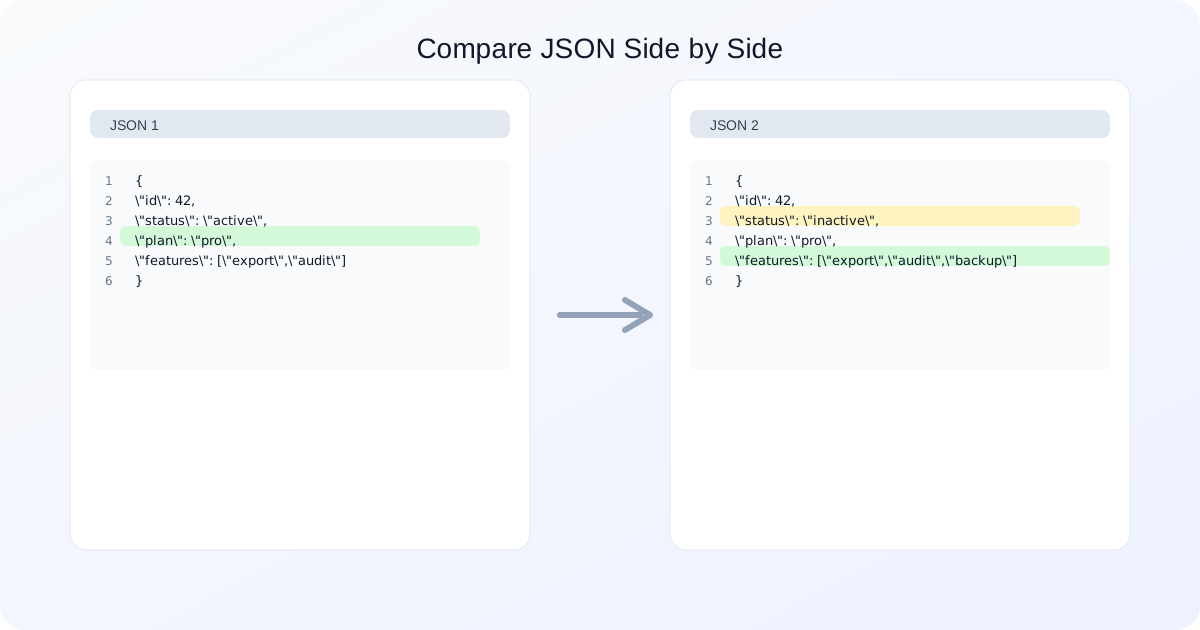
Diff Output (Side-by-Side)
Select a diff to preview.
Select a diff to preview.
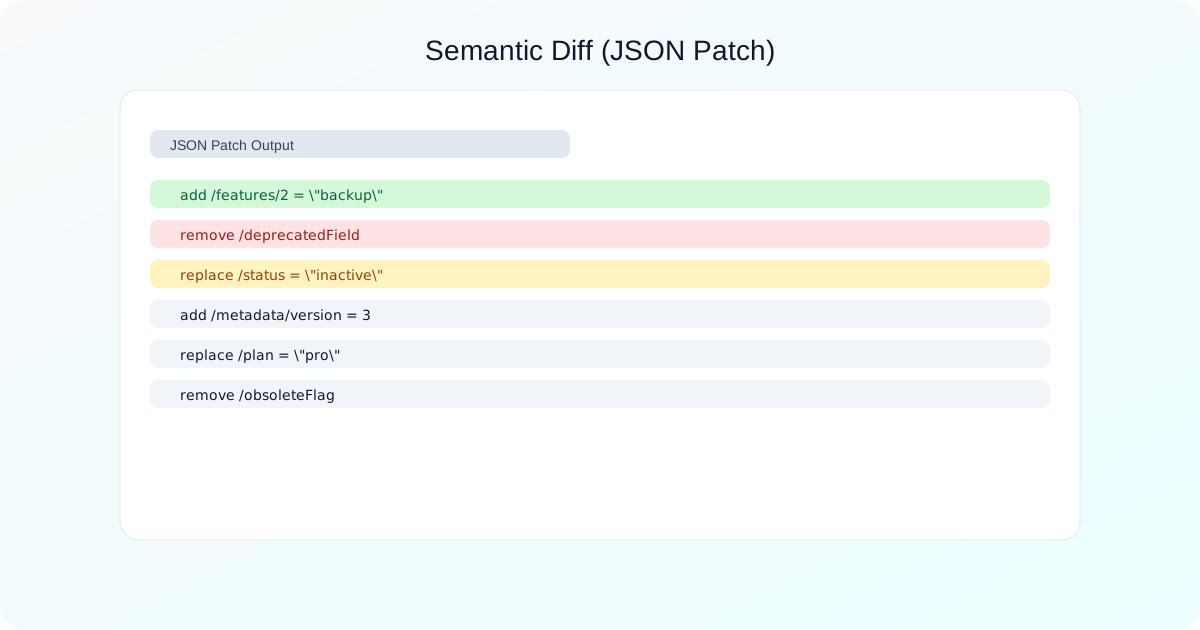
Semantic Diff (JSON Patch Style)
Use JSON Compare to find exactly what changed between two JSON documents. It highlights changed values, added or missing keys, and array order differences, giving you both a side-by-side diff and a semantic JSON Patch-style summary. Everything runs in your browser, so payloads are never uploaded.
Updated September 2026 — consolidated duplicate sections and added structured how-to steps.
- Inputs: paste or upload JSON on the left and right.
- Outputs: side-by-side diff plus a semantic JSON Patch-style summary.
- Privacy: runs locally in your browser — nothing is uploaded, which matters when you are diffing production payloads or internal APIs.
Why compare JSON
JSON is the default format for APIs, configuration files and data interchange. Small changes introduce bugs or break integrations, and they are easy to miss when you diff raw text — reformatting alone can make two identical payloads look completely different. A JSON compare tool parses both sides first, so the differences it reports are about data, not whitespace.
What JSON Compare detects
| Change type | What you see | Why it matters |
|---|---|---|
| Value change | Highlighted line where a field value differs. | The most common breaking change between API versions. |
| Missing or added key | Fields shown on one side only. | Removed fields break clients; added ones usually do not. |
| Type change | Value differs and its type differs with it. | A number becoming a string is a silent client-side break. |
| Array order | Reordered items appear as differences. | Arrays are ordered in JSON, so this is correct behaviour — not a false positive. |
| Key order | Object key order may differ without values changing. | Semantically irrelevant. Use the semantic diff to confirm the data matches. |
How to compare two JSON files
- Paste JSON into the left and right editors.
- Click Compare to view the side-by-side diff.
- Click Semantic Diff for a patch-style summary of adds, removes and replacements.
- Copy or download either side to save a version.
If a comparison fails, one side is not valid JSON. Check it with JSON Validator or fix common problems automatically with JSON Repair.
Example: compare two API responses
Left JSON:
{
  "id": 42,
  "status": "active",
  "plan": "pro",
  "features": ["export", "audit"]
}
Right JSON:
{
  "id": 42,
  "status": "inactive",
  "plan": "pro",
  "features": ["export", "audit", "backup"]
}
The side-by-side diff highlights that status changed and that a new item appeared in features. The semantic diff expresses the same thing as two operations — a replace on /status and an add on /features/2 — which is what you want when generating a patch or writing up what changed.
Side-by-side vs semantic vs text diff
| Method | Best for | Weakness |
|---|---|---|
| Side-by-side diff | Visual inspection; seeing where in the structure a change sits. | Noisy when formatting or key order differs. |
| Semantic diff | Summarising changes as JSON Patch operations for reports or automation. | Less useful for eyeballing a large nested document. |
| Plain text diff | Nothing, for JSON. | Compares raw lines, so reindenting a file produces a page of false positives. |
In practice you use JSON Compare to produce the JSON diff: the side-by-side view to find the change, the semantic view to describe it.
Comparing API responses across environments
When you diff JSON from APIs, the changes that matter are new fields, removed fields and type changes. Comparing a staging response against production confirms schema changes between environments, versions or deployments without writing custom diff scripts.
Migrating from v1 to v2 of an API is the same job at scale: compare typical responses for a representative set of endpoints, focusing on field names, data types and nested structures. Keep snapshots of responses in version control so you can diff them over time and verify that clients will not break.
Common issues and how to fix them
- Invalid JSON: comparison fails if either side will not parse. Validate with JSON Validator first.
- Trailing commas: legal in JavaScript, illegal in JSON. Remove them, or let JSON Repair strip them.
- Different key order: objects can show as different while being logically identical. The semantic diff confirms whether the data actually matches.
- Array order changes: JSON arrays are ordered, so reordering is a real difference by definition. Sort both sides first if order is not meaningful to you.
- Large payloads: very large documents slow the browser. Compare smaller sections, or check the size first with JSON Size Analyzer.
- Comments: JSON has no comment syntax. JSONC and JSON5 files need theirs removed before comparing.
Use cases
- API responses: compare staging against production before a release to verify new fields appear and old ones remain.
- Config changes: review JSON config files after edits or deploys to confirm only the intended settings moved.
- Data exports: compare exports from two runs to check schema and values stayed consistent.
- Data migrations: confirm a migration preserved structure, not just row counts.
- Environment-only bugs: diff the payload that works against the one that does not.
- Regression fixtures: store representative samples in your repository and diff them after updates; assert on the semantic output so only expected changes pass.
Best practices for accurate comparison
- Format both documents consistently first with JSON Formatter so the visual diff is not drowning in whitespace.
- Normalise or remove timestamps and generated IDs when they are expected to differ.
- Sort arrays with JSON Sort where order carries no meaning, to cut diff noise.
- Check data types, not just values — especially for IDs, money and timestamps.
- Compare meaningful slices rather than entire blobs; break large objects into sections.
- Keep sample data in version control so comparisons stay reproducible.
- When sharing findings, include both the visual diff and the semantic summary, and call out type changes explicitly — those are the ones that break clients silently.
FAQs
How to compare two JSON files?
Paste each JSON document into the left and right editors, then click Compare to see the diff.
Is this compare two JSON files online free?
Yes. This tool is free and runs locally in your browser.
Does key order matter?
Object key order can differ without changing values. Use semantic diff to confirm meaning.
Can I compare JSON arrays when order changes?
Arrays are compared in order, so reordering appears as a diff.
Does this tool generate a JSON Patch diff?
The semantic view shows JSON Patch-like operations.
Is my JSON uploaded?
No. Comparison runs entirely in your browser.
Does it ignore whitespace?
Yes. JSON is parsed and compared as structured data.
Does it support large JSON files?
Yes, but very large inputs can slow your browser. Compare smaller sections for best performance.
Does it work for minified JSON?
Yes. Minified JSON is parsed the same way as formatted JSON.
Does it support comments?
JSON does not support comments. Remove them before comparison.
Related tools: JSON Validator, JSON Formatter, JSON Merge Patch, Compare Clips