Online JSON to YAML Converter
Paste or upload JSON on the left, then convert it to YAML on the right.
Copy the YAML or download it as a .yml file.
Free, client-side JSON to YAML conversion
JSON is perfect for APIs, but YAML is often the format of choice for configuration files. Kubernetes manifests, Docker Compose files, CI/CD pipelines, and infrastructure tooling all use YAML because it is easy for humans to read and edit. This JSON to YAML converter lets you take API responses, configuration fragments, or JSON templates and turn them into clean, properly indented YAML in seconds. Everything runs locally in your browser — nothing is uploaded, saved, or logged — and it is the only converter in its class with a configurable output panel (indent, quoting, null style, key sorting, and more).
How to convert JSON to YAML
- Paste the JSON into the left editor or load it from a file.
- Click Convert JSON → YAML to generate YAML on the right.
- Review the output and copy or download it for your YAML-based tool.
- Validate your JSON beforehand with JSON Validator to avoid syntax errors.
Under the hood, the converter maps JSON objects to YAML mappings and JSON arrays to YAML sequences. Strings, numbers, booleans, and null values are preserved, indentation is applied consistently, and values that YAML could misread (version numbers, dates, yes/no) are quoted automatically.
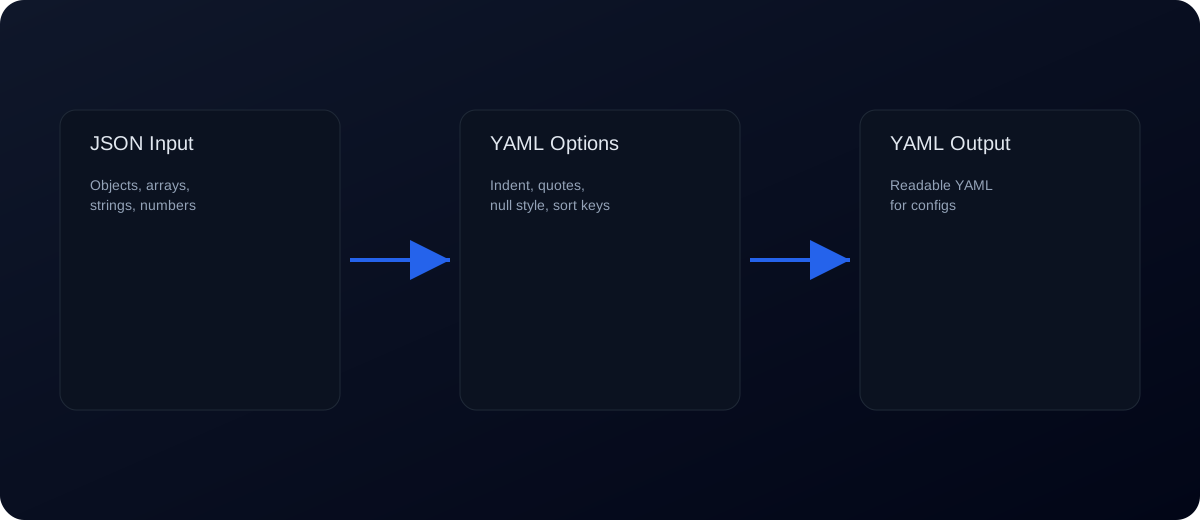
JSON to YAML examples
Example 1: application config
Input JSON:
{
  "app": {
    "name": "analytics-service",
    "replicas": 3,
    "enabled": true,
    "ports": [8080, 8081],
    "labels": {
      "team": "platform",
      "tier": "backend"
    }
  }
}
Output YAML:
app:
  name: analytics-service
  replicas: 3
  enabled: true
  ports:
    - 8080
    - 8081
  labels:
    team: platform
tier: backendExample 2: Kubernetes Service manifest
The most common real-world use case: turning a JSON API object into a Kubernetes manifest. Input JSON:
{
  "apiVersion": "v1",
  "kind": "Service",
  "metadata": {
    "name": "analytics",
    "labels": { "app": "analytics" }
  },
  "spec": {
    "type": "ClusterIP",
    "selector": { "app": "analytics" },
    "ports": [
      { "name": "http", "port": 80, "targetPort": 8080 }
    ]
  }
}
Output YAML — ready for kubectl apply -f:
apiVersion: v1
kind: Service
metadata:
  name: analytics
  labels:
    app: analytics
spec:
  type: ClusterIP
  selector:
    app: analytics
  ports:
    - name: http
      port: 80
targetPort: 8080Example 3: tricky values (nulls, versions, yes/no, multiline)
These are the values that break naive conversions. Input JSON:
{
  "version": "1.10",
  "port": "8080",
  "debug": null,
  "confirm": "yes",
  "zip": "02115",
  "note": "line one\nline two"
}
Output YAML — note the quoting that protects each value’s type:
version: "1.10"
port: "8080"
debug: null
confirm: "yes"
zip: "02115"
note: |-
  line one
  line two
Without quotes, 1.10 would collapse to the number 1.1, yes would become a boolean in YAML 1.1 parsers, and 02115 could lose its leading zero. The converter quotes them for you.
JSON to YAML type mapping
How each JSON type is represented in YAML:
| JSON value | YAML output | Notes |
|---|---|---|
null | null or ~ | Both are valid; pick one with the Null style option and stay consistent. |
true / false | true / false | The strings "yes", "no", "on", "off" must stay quoted or YAML 1.1 parsers read them as booleans. |
Number (3, 3.14) | 3, 3.14 | Number-like strings ("1.10", "02115") keep their quotes so they stay strings. |
| String | plain or quoted scalar | Quoted automatically when YAML could misinterpret it (dates, versions, boolean-like words, : or # inside). |
Array [1, 2] | block sequence with - dashes | One item per line; compact arrays available via No array indent. |
Object {"a": 1} | indented mapping | Two-space indentation is the ecosystem standard (Kubernetes, Compose, CI). |
String with \n | block scalar (| / |-) | Multiline text becomes a readable literal block instead of escaped \n. |
| Nested structures | indentation hierarchy | Depth is unlimited; the converter never flattens or reorders (unless Sort keys is on). |
JSON vs YAML: which should you use?
| JSON | YAML | |
|---|---|---|
| Comments | Not supported | # comments supported |
| Relationship | YAML 1.2 is a superset of JSON — every valid JSON document is valid YAML | |
| Best for | APIs, data interchange, logs | Config files: Kubernetes, Docker Compose, CI/CD, Ansible |
| Typing | Explicit and strict | Implicit — unquoted yes/1.10/2025-01-01 can surprise you |
| Multiline strings | \n escapes | Readable block scalars (|, >) |
| Readability at depth | Braces pile up | Indentation stays scannable |
Rule of thumb: JSON for machines talking to machines, YAML for files humans edit. That is exactly why converting API output (JSON) into config files (YAML) is such a common workflow.
Convert JSON to YAML programmatically
When you outgrow a browser tool — batch jobs, CI pipelines, build scripts — use the same conversion in code:
Node.js (js-yaml)
import fs from "node:fs";
import yaml from "js-yaml";

const data = JSON.parse(fs.readFileSync("config.json", "utf8"));
fs.writeFileSync("config.yml", yaml.dump(data, { indent: 2 }));
Python (PyYAML)
import json, yaml

with open("config.json") as f:
    data = json.load(f)

with open("config.yml", "w") as f:
    yaml.safe_dump(data, f, sort_keys=False, indent=2)
Command line (yq)
yq -P '.' config.json > config.ymlThis converter uses the same js-yaml library as the Node snippet, so browser output and script output match — handy for verifying a pipeline’s result quickly.
YAML output options explained
- Indent spaces: Controls nesting depth. Two spaces is the most common.
- Line width: Set a wrap width or use 0 for no wrapping.
- Sort keys: Alphabetically orders keys for stable diffs.
- Force quotes: Quotes all scalars to avoid YAML type surprises.
- Quote style: Choose single or double quotes for strings.
- Null style: Output
null,~, or empty. - No array indent: Produces compact arrays (useful for some linters).
- No refs (duplicate): Avoids YAML anchors for repeat values.
No other online JSON to YAML converter exposes this full set of output controls — most offer none at all.
Common errors and fixes
- Invalid JSON: JSON must be valid before conversion. Use JSON Validator to catch missing commas or mismatched braces — or JSON Repair to fix them automatically.
- Unquoted strings: YAML treats some strings (like
yes,no, oron) as booleans. Quoting those values prevents unexpected type changes. - Indentation mistakes: YAML is indentation-sensitive. If you manually edit the output, keep the spacing consistent and avoid tabs.
- Numbers that should be strings: IDs or version numbers might be parsed as numbers. Quote them to preserve exact formatting.
- Null handling: JSON
nullbecomes YAMLnullor~. Both are valid, but stick with one for clarity.
Share a conversion link — without uploading anything
Click Share Link in the toolbar to copy a URL that re-opens this converter with your JSON already loaded. The data travels in the URL hash fragment (#input=…), which browsers never send to any server — so unlike converters with “save online” accounts, sharing here keeps your data 100% client-side. Paste the link in a code review, an issue, or a Stack Overflow answer and the recipient sees exactly what you see.
Best practices & DevOps workflows
Best practices for YAML config
- Keep keys descriptive and avoid special characters when possible.
- Use consistent indentation (two spaces is a common standard).
- Quote strings that might be misinterpreted (dates, yes/no values, leading zeros).
- Document complex values with comments after conversion.
- Store generated YAML in version control so changes can be reviewed.
Working with DevOps tools
Many DevOps platforms consume YAML but expect specific schemas. For example, Kubernetes expects nested objects like spec and metadata, while GitHub Actions expects jobs and steps. Converting JSON to YAML only solves syntax; you still need to ensure the structure matches the target specification. If your YAML fails validation, compare it to the official examples and adjust keys accordingly.
Handling complex data types
YAML is flexible, but it can surprise you with implicit typing. Values like 2025-01-01 may be interpreted as dates, while 00123 may be interpreted as a number. To avoid issues, quote values that should remain strings. The converter does this when it detects ambiguous values, but always review the output if type accuracy is critical.
Large files and performance
For large JSON files, conversion can take longer in the browser. If performance is a concern, break the JSON into smaller segments or convert it server-side using a CLI tool, then verify the results here. This tool is ideal for daily workflows, debugging, and quick conversions without installing dependencies.
Multiline strings and blocks
YAML supports block scalars for multiline text, which can make long scripts or certificates easier to read. If your JSON contains newline characters, review the YAML output and consider converting it to a block style (| or >) for clarity. This is especially helpful for Kubernetes config maps, CI scripts, or license keys where whitespace matters.
Environment-specific overrides
If you generate YAML for multiple environments (dev, staging, production), keep shared settings in a base file and override only the environment-specific keys. This keeps your YAML maintainable and reduces the chance of mistakes.
Validation after conversion
After converting, run the YAML through your target tool or a linter. This confirms that the syntax and structure are accepted by the platform before you deploy. Before production: validate JSON input, convert, review the diff with teammates, and test in staging.
FAQs
Does this tool upload my JSON? No. The conversion happens locally in your browser.
Is JSON valid YAML? Yes — YAML 1.2 is a superset of JSON, so any valid JSON document is technically valid YAML. Converting still helps because idiomatic YAML (indentation instead of braces) is much easier to read and maintain.
Does converting JSON to YAML lose data? No. Values and structure are preserved exactly; only the representation changes. Ambiguous strings (version numbers, yes/no values) are quoted automatically so their types survive.
How do I convert JSON to YAML without installing anything? Use this page — it is 100% client-side JavaScript: no signup, no upload. You can even pre-fill it via the URL hash (#input=…) using the Share Link button.
Can I convert large JSON files? Yes, but very large files may be limited by your browser’s memory. Splitting large files can improve performance.
Will the YAML output be valid for Kubernetes? The output is valid YAML, but you must ensure the structure matches the schema of the target resource.
Can I add comments in JSON and keep them? JSON does not support comments, so there is nothing to carry over. You can add comments in the YAML after conversion.
Does the converter handle arrays of objects? Yes. Arrays are converted into YAML sequences with proper indentation.
How do I convert YAML back to JSON? Use the YAML to JSON tool for the reverse conversion.
Common use cases
Most teams convert JSON to YAML to produce readable configuration files — turning an API response or a generated config into YAML for Kubernetes manifests, Docker Compose files, or GitHub Actions workflows. For a deeper walkthrough, see our guide on JSON → YAML best practices for DevOps & Kubernetes.
Related tools: YAML to JSON, JSON Repair, JSON Validator, JSON Formatter, Load JSON from URL